A digital declutter works best when you stop thinking of it as one giant cleanup and start treating it like tidying a home: one room at a time, in short sessions, with a clear finish line for each. Nobody needs to spend a whole weekend deleting 14,000 photos. You need a plan small enough that you'll actually start it.
The payoff is surprisingly big. A calmer home screen means fewer automatic taps. A quieter inbox means fewer "did I miss something?" moments. Sorted photos mean you can find that one picture in seconds, and a proper backup means you won't lose them. It's the digital version of walking into a freshly tidied room and feeling your shoulders drop.
This guide to a digital declutter breaks everything into four gentle sessions: your phone (home screen, apps and notifications), your email (unsubscribing, folders and simple rules), your photos and files, and finally passwords and social feeds. You'll find a session plan table with time estimates and a clear "done when" for each, plus a ten-minute monthly habit to keep it all tidy.
Make a cup of tea, put your phone on silent (ironic, I know) and let's start small.
Why a Digital Declutter Feels So Good
Digital clutter is easy to ignore because you can't see it piling up on the floor. But your brain notices it all the same. Every red badge, every "storage almost full" warning and every inbox with 4,000 unread messages is a tiny, nagging to-do that never quite goes away.
Clearing it out gives you a few lovely things at once:
- Fewer interruptions. When only people can reach you, the day feels longer and calmer.
- Less decision fatigue. A simple home screen and a short inbox mean fewer tiny choices every time you pick up your phone.
- Peace of mind. Knowing your photos are backed up and your accounts are secure is a quiet relief you'll feel for years.
- More intention. When your devices are tidy, it's easier to notice when you're reaching for them out of habit rather than need.
It took me a while to see that my phone wasn't the problem so much as everything I'd let pile up on it. Once the clutter was gone, putting it down got much easier.
Before You Start: 3 Gentle Ground Rules
A few rules keep a digital declutter from turning into an all-day spiral:
- Set a timer for every session. When it rings, stop, even if you're mid-folder. The plan is designed to be finished in pieces.
- Back up before you delete. Especially photos and documents. Deleting is only relaxing when you know the important things are safe.
- Good enough beats perfect. You're aiming for "calm and findable," not a flawless system with 40 color-coded folders.
If your goal is less about tidying and more about spending less time on your devices overall, my guide to a gentle digital detox pairs beautifully with this one. Declutter first, and the detox gets much easier.
Digital Declutter in 4 Sessions

Here's the whole plan at a glance. You can do one session a day over a long weekend, or one per weekend for a month. Screenshot it and tick each one off as you go:
| Session | Area | Time | Done when… |
|---|---|---|---|
| 1 | Phone: home screen, apps, notifications | 45–60 minutes | Your home screen fits on one page, unused apps are gone and only people (not apps) can interrupt you |
| 2 | Email: unsubscribe, folders, inbox rules | 60 minutes | You've unsubscribed from at least 20 senders, have 3–5 simple folders and the inbox shows only what needs you |
| 3 | Photos and files: duplicates, favorites, albums, saved files, backup | 60–90 minutes | Screenshots and duplicates are cleared, favorites are marked, everything is backed up in two places and your saved-files folder is empty |
| 4 | Passwords and social feeds | 45–60 minutes | Passwords live in one secure manager, old accounts are closed and your feeds make you feel better, not worse |
Each session starts with the quickest wins, so even if you only get through the first 20 minutes, you'll feel the difference.
Session 1: Your Phone
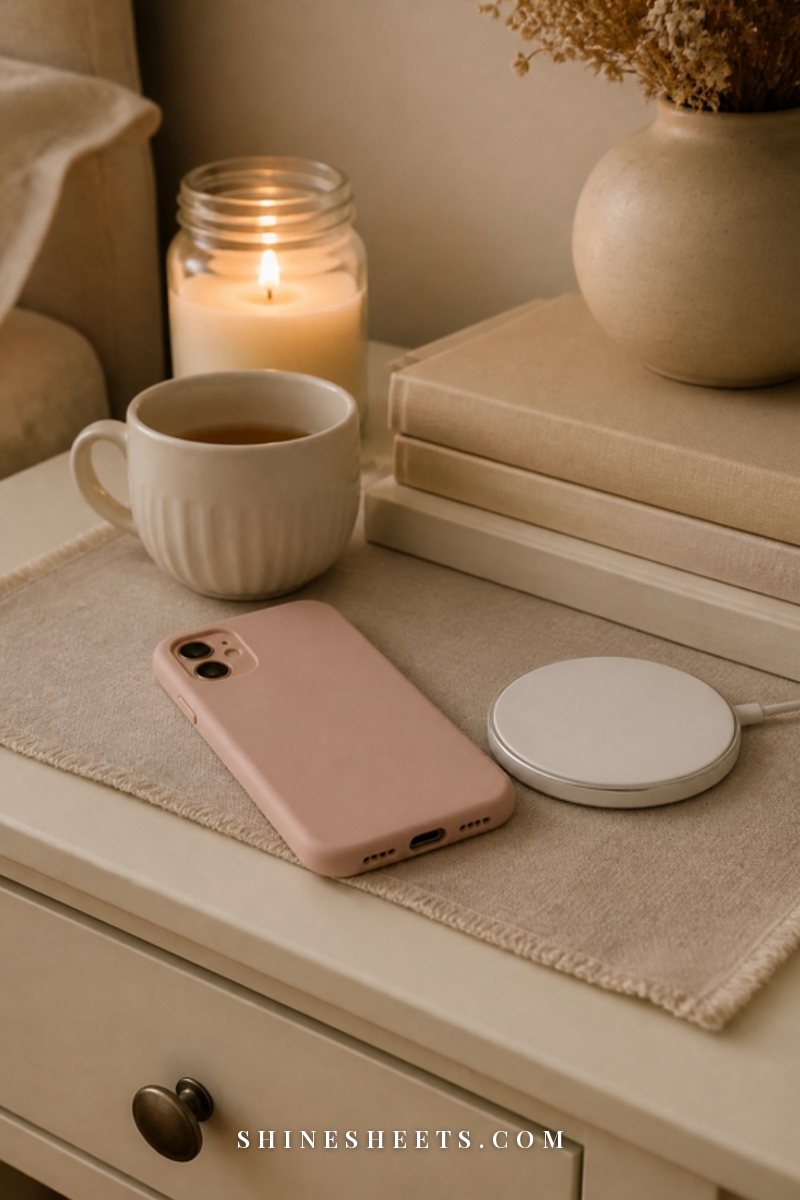
Your phone is the device you touch most, so it's the best place to start. Sit somewhere comfortable, prop it up on a simple phone stand so your neck stays relaxed, and work through these three parts in order.
Clean Up the Home Screen
Your home screen is like the entryway of your digital home. It should hold only what you use every day and nothing that pulls you in without asking.
- Keep it to one screen, ideally with 8–12 apps.
- Put tools on the home screen (calendar, notes, maps, camera, banking) and tuck temptations (social media, shopping, games) into a folder on page two.
- Group the rest into a few folders with plain names: "Home," "Money," "Travel," "Health."
- Choose a calm wallpaper. A soft texture or a favorite photo without much detail makes icons easier to see.
Delete Apps You Don't Use
Go to your phone's storage settings, where apps are usually listed by size and last use. The rule I like: if you haven't opened it in three months and it's not something you'll need in an emergency or on a trip, delete it. You can always reinstall it in a minute.
Look especially for duplicate apps (three photo editors, two note apps), shopping apps you opened for one discount and games you no longer play. Most people can remove 20 or more without missing a single one.
Tame Your Notifications
This is the step that changes your days the most. Open your notification settings and go app by app:
- Keep on: calls and messages from people, calendar reminders, banking security alerts, anything time-sensitive.
- Turn to silent or summary: email, news, group chats you're not actively part of.
- Turn off completely: shopping apps, games, social media likes and "you might have missed" nudges.
Then set up a simple focus or do-not-disturb schedule for evenings. If your phone tends to follow you into bed, my guide on how to stop reaching for your phone before bed has gentle ideas for that last hour of the day.
Session 2: Your Email
An overflowing inbox is mostly newsletters, promotions and notifications you never asked to keep. The goal isn't an empty inbox for its own sake. It's an inbox where the important messages aren't buried.
Unsubscribe in One Focused Sprint
Search your inbox for the word "unsubscribe." Everything that comes up is a mailing list. Set a timer for 20 minutes and go through them from the top: unsubscribe from anything you haven't opened in the last month. Keep only the few newsletters you genuinely look forward to.
Many email apps also show a "frequent senders" or subscriptions view, which makes this even faster. Then select all the old promotional emails and delete them in one go. It's oddly satisfying.
Create 3–5 Simple Folders
Fewer folders work better than many, because you'll actually use them. A simple set:
- Action: needs a reply or a task from you.
- Waiting: you're waiting on someone else.
- Receipts and orders: purchases, returns, bookings.
- Keep: documents and messages you'll want later.
- Read later: newsletters you truly enjoy.
Everything else can be archived. Search is very good these days; you don't need to file every message perfectly.
Set Up a Few Inbox Rules
Rules (or filters) do the sorting for you. Start with two or three: send receipts to the receipts folder automatically, send newsletters to "Read later" so they skip the inbox, and mark notifications from certain apps as read. Fifteen minutes of setup saves hours over a year.
Deal With the Backlog Kindly
If you have thousands of old emails, you don't need to read them. Here's the gentle shortcut: search for anything from the last 30 days that's still unread and might matter, move those few to "Action," then select everything older than a month and archive it all at once. Archived mail isn't deleted. It's still searchable whenever you need it, just no longer staring at you every morning.
From then on, try a simple daily rhythm: open email twice a day, deal with anything that takes under two minutes straight away, move the rest to "Action" and close the app. It sounds almost too simple, and it's exactly why it works.
The same habits help with a work inbox too. My guide on how to be more organized at work covers that side, including when to check email so it doesn't run your whole day.
Session 3: Your Photos and Files
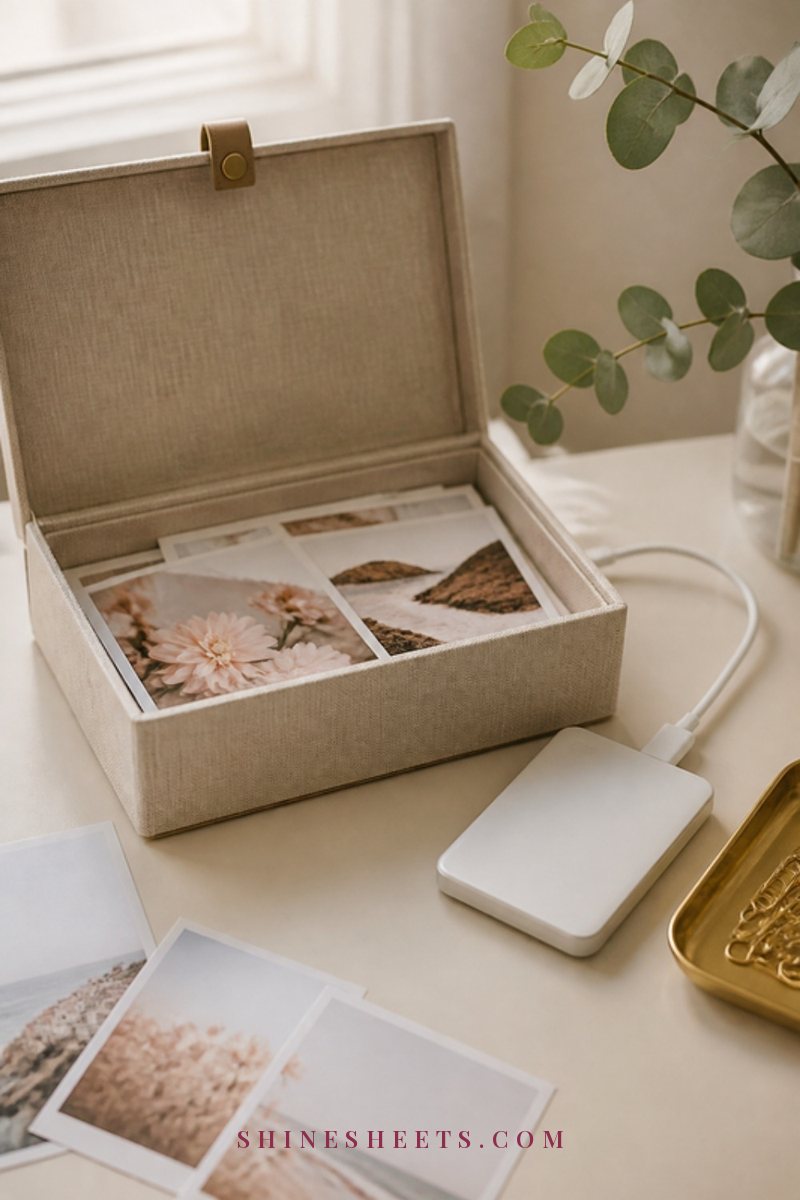
Photos are where most people feel the most overwhelmed, so start with the easy wins and leave the sentimental sorting for last. Remember the ground rule: back up first.
Back Up Before Anything Else
A safe photo plan has two copies in two places: one in a cloud backup and one on a portable external drive that lives at home. Look for a drive with plenty of space (at least double what your photo library uses today) and a simple plug-and-copy setup. Copy your whole library once, then add new photos to it monthly.
Clear the Easy Clutter
- Screenshots: most phones let you filter by screenshots. Delete everything you no longer need, which is usually almost all of them.
- Duplicates and bursts: many photo apps can find duplicates automatically. For bursts, keep the best one and delete the rest.
- Blurry shots, accidental pocket photos and photos of receipts you no longer need.
- Videos: sort by size. A few long videos can take more space than a thousand photos.
Mark Favorites and Make a Few Albums
Instead of sorting every single photo, simply tap the heart on the ones you love as you go. Then make a handful of albums: one per year, plus a few for things you look at often, like "Family," "Home" or "Travel." It makes finding the good ones effortless.
If there are photos you'd love to hold in your hands, print a small batch each year and keep them in a linen photo storage box. It's a sweet way to turn a digital declutter into something tangible.
Empty the Saved-Files Folder and Tidy Files
On your computer, open the folder your browser saves files into and sort it by date. Delete installers, duplicates and anything you've already saved elsewhere. Then create a few top-level folders (for example "Home," "Money," "Work," "Personal," "Archive") and move the remaining files into them. Paper and digital documents often overlap, so my guide on how to organize paperwork uses the same categories for both.
Session 4: Passwords and Social Feeds
The last session is part security, part peace of mind. It's also the one people skip most often, so give yourself extra credit for getting here.
Gather Your Passwords in One Safe Place
If your passwords live in a notes app, on sticky notes or in your memory as one password with small variations, a password manager is a kind gift to your future self. Most phones and browsers include one, and there are many reputable standalone options. Choose one, set a long, memorable master phrase and let it create strong, unique passwords for each account.
While you're there:
- Turn on two-step verification for email, banking and your main cloud account first.
- Update any password you've used on more than one site.
- Close old accounts you no longer use, like that shop you ordered from once years ago. Fewer accounts means fewer places your details can leak.
Curate Your Social Feeds
Your feed is a room you walk into every day, so it's worth choosing who's in it. Go through the accounts you follow and ask one question: do I usually feel better or worse after seeing this? If scrolling often leaves you feeling left behind, these gentle tools for dealing with FOMO are worth a read.
- Unfollow or mute accounts that leave you comparing, rushing or buying things you don't need.
- Keep friends, family and accounts that teach you something or make you laugh.
- Leave group chats you no longer belong to (kindly, with a short message if needed).
- Turn off autoplay and "suggested for you" content where the app allows it.
Muting is a lovely option when unfollowing feels awkward. Nobody is notified, and your feed gets calmer immediately.
Gentle Ways To Handle Sentimental Digital Clutter
Some digital clutter isn't really clutter at all. Old voice messages from a grandmother, chat threads with a friend you've lost touch with, photos from a relationship that ended. These deserve a slower, kinder approach than "select all, delete."
- Save, then archive. Export or screenshot the messages that matter, store them in a private album or folder called "Keep," then archive the full thread so it's out of daily view.
- Use a "maybe" album. If you're not ready to decide about certain photos, move them into one hidden album. Revisit it in six months, when the feelings are softer.
- Back up voice notes and videos of loved ones to your external drive as well as the cloud. These are often the most precious files you own.
- Give yourself permission to stop. If a session turns emotional, close it, make a cup of tea and come back another day. There is no deadline.
Decluttering is about making room for what matters, never about erasing the past. Keep everything that still feels warm.
If You Only Have 15 Minutes
Not every week has room for a full session. When you only have a quarter of an hour, these five quick wins make the biggest visible difference:
- Turn off notifications for every shopping app.
- Unsubscribe from the five senders who email you most.
- Delete all screenshots older than a month.
- Move social media apps off your home screen.
- Delete three apps you haven't opened this season.
Small as they are, these steps often change how your phone feels within a day.
Tidy the Charging Corner Too
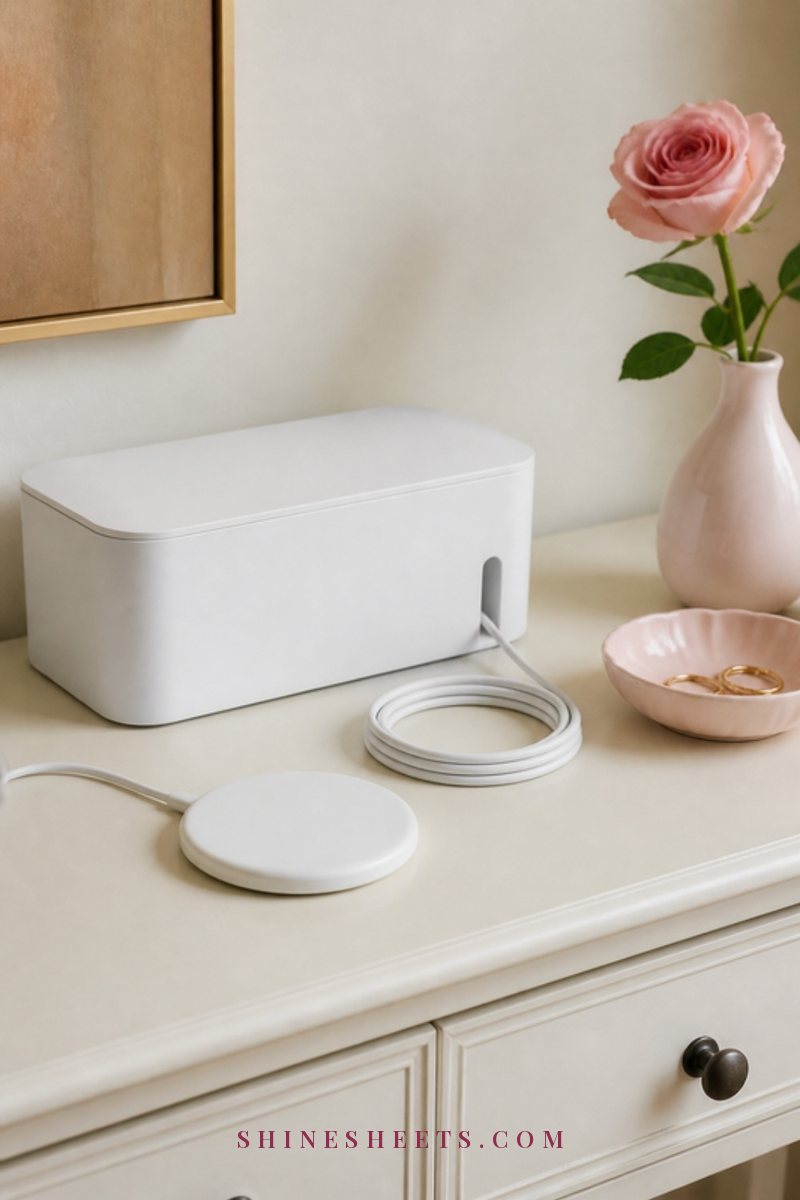
A digital declutter feels more complete when the physical side is calm too. Tangled cables and three chargers per outlet create a surprising amount of visual noise.
- Pick one charging spot outside the bedroom if you can, or on a dresser rather than your pillow.
- A wireless charging pad means no fiddling with cables at night. Look for one with a soft-touch finish and a gentle (or switchable) indicator light.
- Hide power strips and spare cables in a cable organizer box with a slot at each end. Look for one large enough to hold a power strip, with ventilation holes.
- Recycle chargers and cables for devices you no longer own. Most electronics stores accept them.
If you spend long evenings sorting photos on a laptop, a pair of light, comfortable blue light glasses can make the session feel easier on the eyes, though breaks every 20 minutes and looking at something far away help just as much. For a calm workspace to do all of this from, my desk organization ideas are a lovely next step.
Keep It Tidy: A 10-Minute Monthly Habit

Once you've done the four sessions, staying decluttered takes very little. Put a ten-minute reminder on the first weekend of each month and run through this quick list:
- Delete screenshots and obvious duplicates from the past month.
- Copy new photos to your external drive.
- Unsubscribe from any new mailing lists that crept in.
- Empty the saved-files folder and the trash.
- Delete one app you didn't use and mute one account that didn't feel good.
That's it. Like a weekly tidy at home, the little monthly reset keeps the big cleanup from ever being necessary again.
Final Thoughts
A digital declutter doesn't need a free weekend or a perfect system. Four short sessions, one timer and a few honest decisions are enough to make your phone quieter, your inbox lighter and your photos safe and easy to find.
Start with your home screen tonight. Once your devices feel calm, it becomes so much easier to use them on purpose and to put them down when you're done.